Customers may need to cancel an appointment from time to
time due to changes in circumstance. To do so open the Customer Information
page and locate the appointment they wish to cancel. 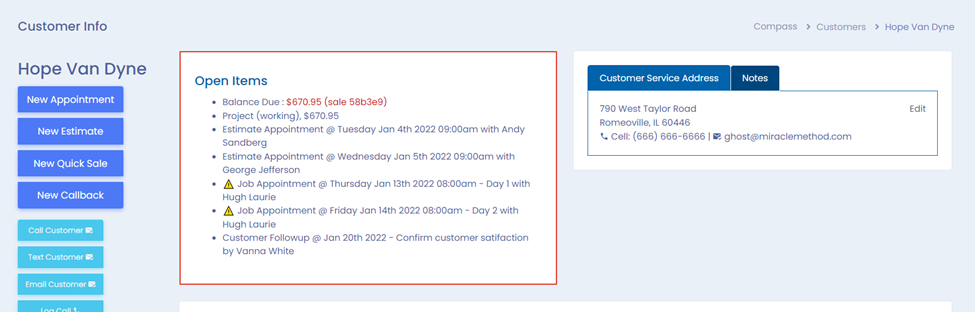
Click on the appointment in the Open Items screen, and the
Appointment Information screen will appear.
Click
on Cancel
The Cancel Appointment Confirmation screen will open,
allowing you the option to create a ToDo, such as follow up with the customer
at a later date.
If you wish to create a follow up. Click the check box next
to the Finish Cancelling Appointment button, and a form will appear.
If the ToDo creation was selected, fill the required
information out, such as the Title, Date, Assigned to, etc.
When all information is confirmed, either with or without
the ToDo created, click on the Finish Cancelling Appointment.
Was this article helpful?
That’s Great!
Thank you for your feedback
Sorry! We couldn't be helpful
Thank you for your feedback
Feedback sent
We appreciate your effort and will try to fix the article