To email a Work Order to a Technician first click on the
project you wish to email to the technician. You can easily find this under the
Appointments and Estimates tab on the customer information page.
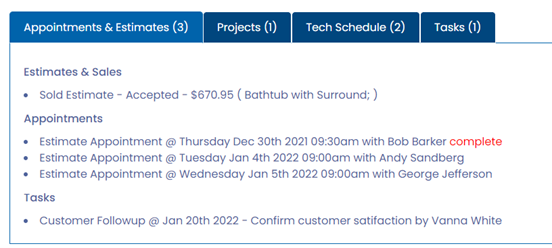
This will open the
Project Information Page.
Once there, clicking on the Email Work Order button located along the left-hand side.
This will automatically create the work order, create the
email and attach it the work order to the email. You will notice a green bar
along the top noting that the work order has been attached to the email to be
sent.
The email address, subject line, and main content of the
email will be automatically populated. If you wanted to change any portion of
the email, including subject line, or the main content of the email, you could
simply click in the area you wished to change, and make any adjustments as
desired.
You could also click on the Add CC button above the email
address line to copy the email to additional recipients.
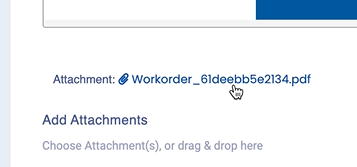 You will notice that under the main content of the email, the work order is attached to the email to be sent.
In addition to the attached work order, you can add any
additional attachments you may wish to send along with the work order, by
either clicking in the box and selecting them from the computer or dragging the
files you wish to attach into the attachment box.
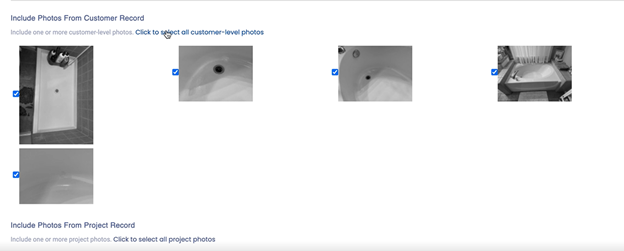
You can also
attach any photos that are held within the Customer Information, or the Project
Record by clicking on the photos that are displayed at the bottom of the email
page.
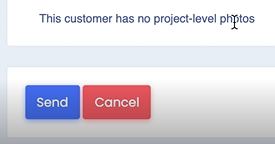
One you are
satisfied with the contents of the email, and optionally attached any project
related photos, click on Send to deliver the email to the technician(s)
In the event that the email
address shows up as blank when the Email page appears, chances are there is not
an email address on file for the technician.
.
Was this article helpful?
That’s Great!
Thank you for your feedback
Sorry! We couldn't be helpful
Thank you for your feedback
Feedback sent
We appreciate your effort and will try to fix the article