As the business grows, there will be a need to add staff
members to Compass. This can easily be
done by using the Staff option under the Company Admin settings. 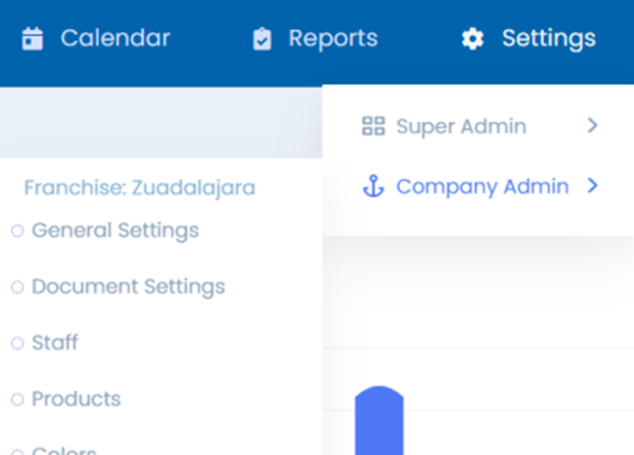
A list of currently active and inactive staff members will
be displayed. To add a new employee to
the roster, simply click on the Add Staff Member Button on the right-hand side.
A blank Staff Member page will come up. Fill out all the
details including Name, Phone Number, Email, Start Date, etc.
Assign
them a color for usage on the Calendar and on the Dashboard chart.
Assign the new employee job roles, such as if they are
specifically an Estimator, Technician, or Front office staff.
For
Technicians, ensure they have all the proper assignments for what job types
they are skilled in.
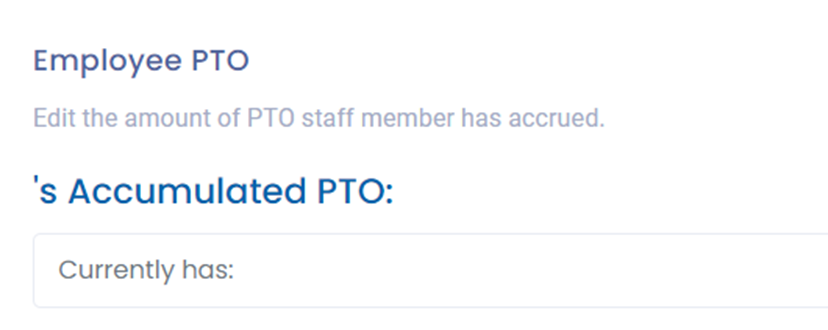
Finally assign the amount of PTO the employee has
accumulated. Note this does not currently sync to Quickbooks Payroll, however we may enhance this in the future.
Double
check to make sure everything has been filled out and is accurate, then click
Submit to save, or Cancel to discard all the information entered.

Was this article helpful?
That’s Great!
Thank you for your feedback
Sorry! We couldn't be helpful
Thank you for your feedback
Feedback sent
We appreciate your effort and will try to fix the article